This article will provide information on how to use and work with LinkManager on the Secomea Prime Web portal.
Before you start, make sure that you are logged into your account on Secomea Prime.
LinkManager Installation
To install LinkManager application on your PC, click the “GateManager link” in the left side menu.
The actual menu might look diffrent depending on your account role (here an Admin role menu is shown) .
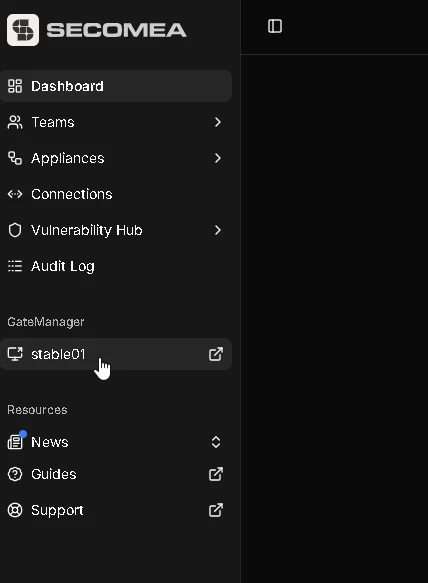
How to install LinkManager in Google Chrome
How to install LinkManager in Microsoft Edge
How to install LinkManager in Mozilla Firefox
Use LinkManager
When installation is completed you can return to Secomea Prime web portal.
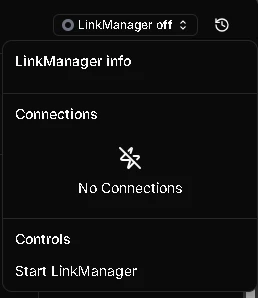
You can start LinkManager from the menu in the upper right corner.
Or you can select a SiteManager or agent from the Appliances page and click Start button.
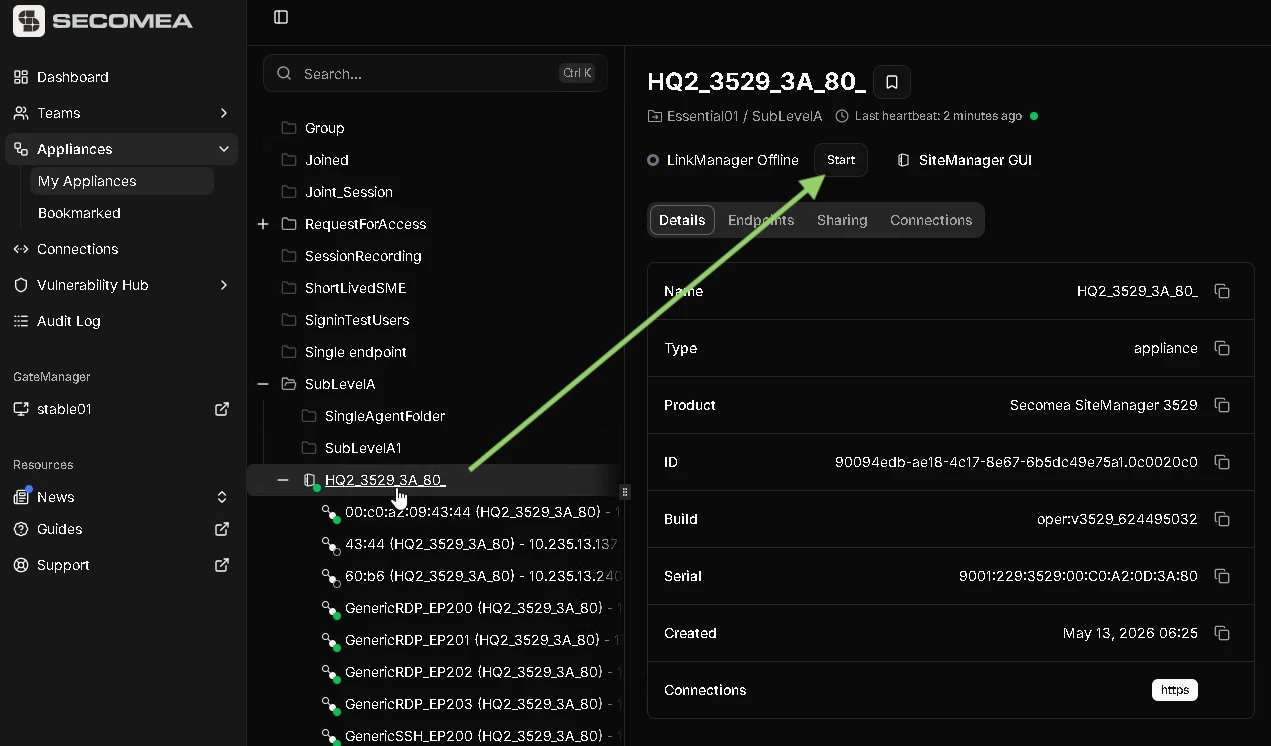
State of the LinkManager is shown both next to the start button and in the upper right corner of the page. When LinkManager ready is displayed a connect button will be visible instead of the Start button.
Click the connect button to start a tunnel to the selected SiteManager and/or agents. This will now allow you to acces the device configured in the agent directly via its IP address and any ports configured.
To switch connection, click the disconnect or simply just select and connect to another SiteManager or agent. LinkManager will switch the connection to the new selection.
Multiple GateManager (Switching GateManager context)
Some users will have multiple GateManagers in the menu on the left side.
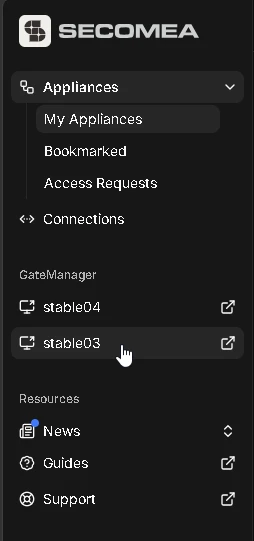
With switching from a SiteManager or agent on one GateManager to a SiteManager or agent on another GateManager, the switch might fail due to latency or the performance if the browser.
During the switch this message will be displayed.

In the case where LinkManager doesn’t establish the connection after a switch between GateManager context, simply click the connect button again to re-initialise the connection.
Troubleshooting LinkManager
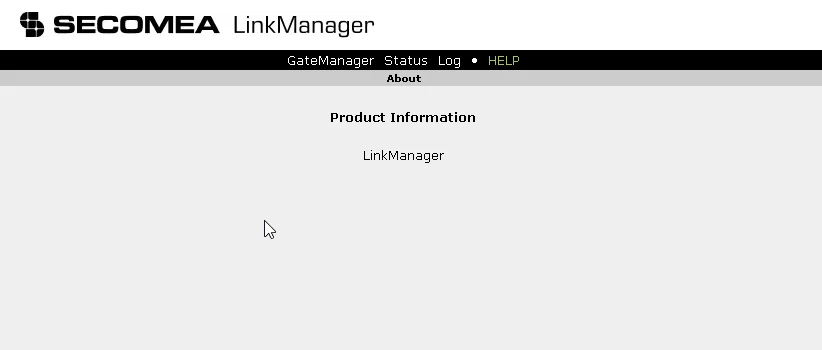
In the upper left corner menu, you can find the Linkmanager UI in the controls section.
This gives you access to LinkManager debug logs and information about the LinkManager version.
In case you get a LinkManager adapter error displayed next to the LinkManager tray icon.

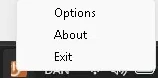
You can right click the LinkManager icon, and select Exit.

This will close the tray icon and reset the LinkManager.