Set up SCIM with Okta
The aim of this section is to guide administrators with no prior SCIM knowledge to successfully set up a Secomea SCIM application in Okta.
Create the SCIM Application in Okta
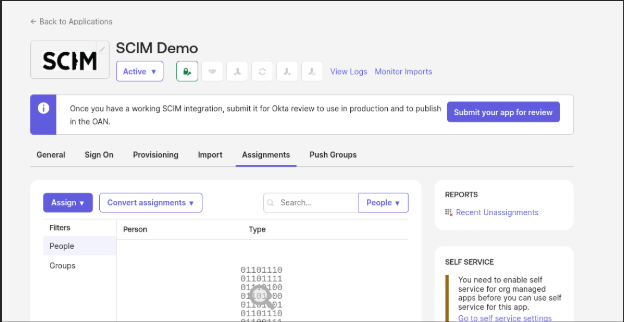
Step 1: Create or Find the App
- Login to Okta Admin Console
- Navigate: Applications > Applications
- Click on Browse App Catalog and search for SCIM 2.0 Test App (OAuth Bearer Token)
- Select and click Add Integration.
- Complete the necessary setup.
Step 2: Enable Provisioning to Secomea
-
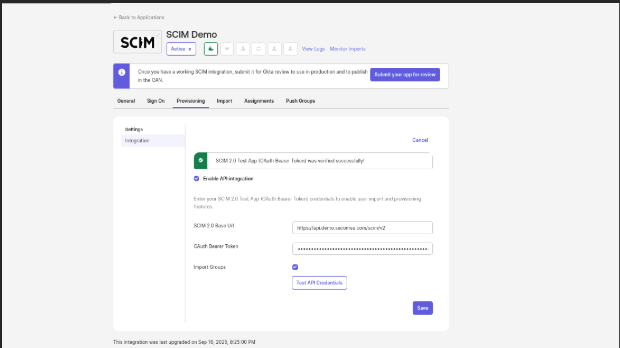
After adding the app, go to the Provisioning tab
-
Under Integration, enable API integration and fill the required fields:
- SCIM Connector Base URL: https://api.secomea.com/scim/v2
- OAuth Bearer Token: Access token (see below)
- Click Test API Credentials.
- If successful, click Save
-
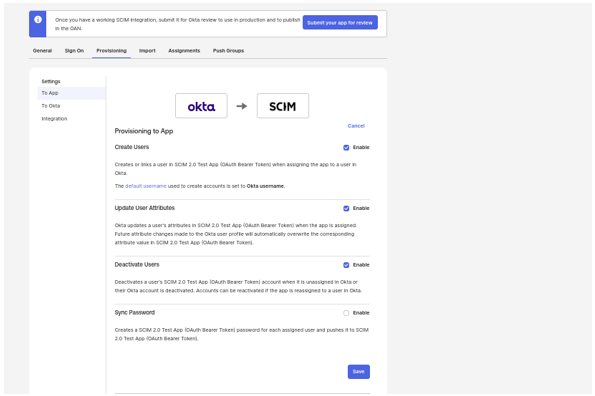
After successful connection with SCIM Application, go to the “To App” section, click “edit” and enable the below settings:
- Create users
- Update users Attributes
- Deactivate users
How to generate the needed SCIM Access Token
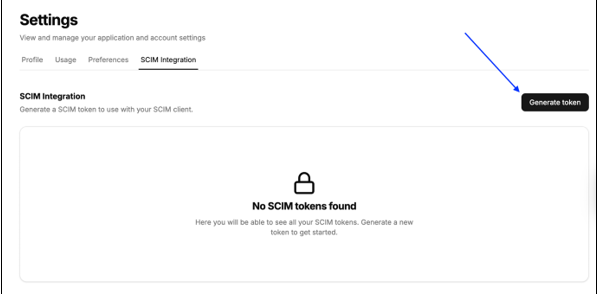
In Prime UI, navigate to the Settings space then SCIM Integration. From here, you can generate (and revoke) your Secomea SCIM access tokens. Please first make sure you’ve been granted the needed permission via your Secomea contact.
Attribute Mappings
In Okta, go to Provisioning > To App > Edit Mappings and map the Secomea SCIM Attributes as per the following table, in order to ensure the attributes will be mapped correctly.
| SCIM Attribute | Okta Attribute | Mandatory |
|---|---|---|
| userName | userName | Yes |
| active | status | Yes |
| displayName | displayName | Yes |
| emails[type eq "work"].value | Yes | |
| name.givenName | firstName | Yes |
| name.familyName | lastName | Yes |
| Path | Path | No |
| role | role | No |
The attributes are then mapped by default, no ad hoc changes required. For custom attributes mapping, please refer Configuring custom attributes section below.
Final Checklist for base set up
- SCIM configuration details obtained
- App created or integrated in Okta
- Token generated and tested
- Provisioning enabled
- Users/groups assigned
- Attribute mappings validated
For any issues, please consult with your Secomea contact.