Set up SCIM with Microsoft Entra ID
The aim of this section is to guide administrators with no prior SCIM knowledge to successfully integrate a SCIM-compatible application with Microsoft Entra ID (formerly Azure AD).
Create the SCIM Application in Microsoft Entra ID
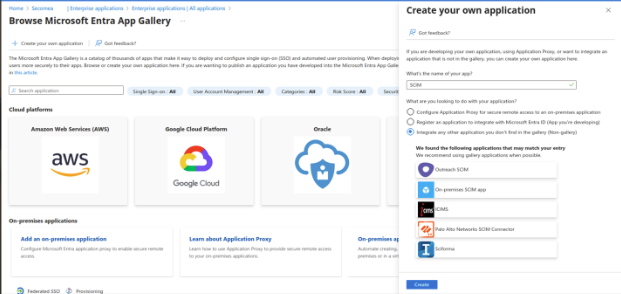
Step 1: Register a Secomea Enterprise App
- Login to https://portal.azure.com
- Go to Microsoft Entra ID > Enterprise Applications > New Application
- Select "Create your own application"
- Enter a name (e.g. Secomea SCIM App) and select "Integrate any other application you don't find in the gallery"
- Click Create
Step 2: Enable Automatic User Provisioning to Secomea
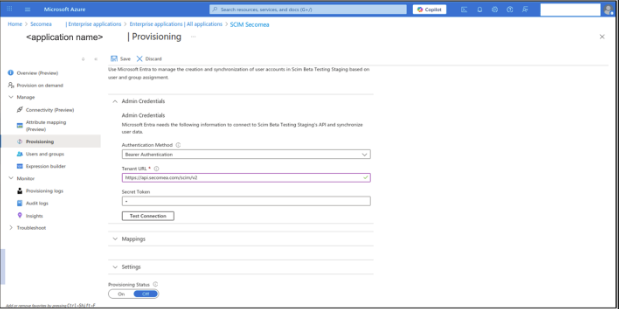
- Go to the app > Provisioning
- Click Get Started > Set Provisioning Mode: Automatic
- Fill the required fields:
| Field | Value |
|---|---|
| Authentication Method | Bearer Authentication |
| Tenant URL | https://api.secomea.com/scim/v2 |
| Secret Token | Access token (see below) |
- Click Test Connection
- If successful, click Save and set Provisioning Status: On
- Assign users/groups under Users and Groups section
How to generate the needed SCIM Access Token
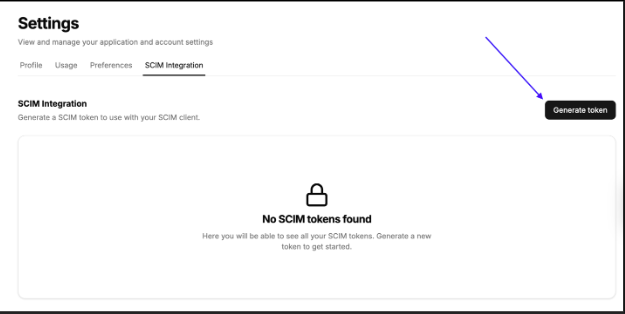
In Prime UI, navigate to the Settings space, then SCIM Integration. From here, you can generate (and revoke) your Secomea SCIM access tokens. Please first make sure you’ve been granted the needed permission via your Secomea contact. Tokens are valid for one year. See Manage SCIM access tokens for the rotation procedure - we recommend scheduling a reminder now.
Attribute Mappings
In Entra ID, go to Provisioning > Mappings > Provision Azure Active Directory Users, and map the Secomea SCIM Attributes as per the following table, in order to ensure the attributes will be mapped correctly.
| SCIM Attribute | Entra ID Attribute | Mandatory |
|---|---|---|
| userName | userPrincipalName | Yes |
| active | accountEnabled | Yes |
| displayName | displayName | Yes |
| emails[type eq "work"].value | Yes | |
| name.givenName | givenName | Yes |
| name.familyName | surname | Yes |
| externalId | objectId | Yes |
| role | role | No |
How it should look for Users:
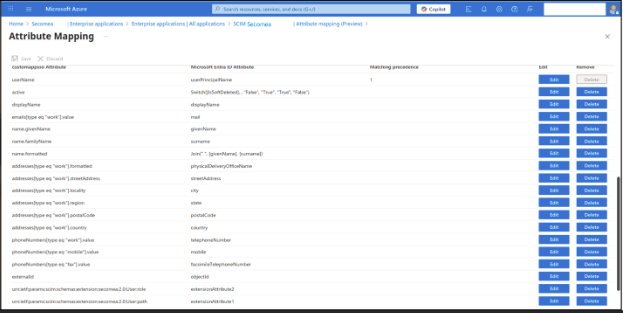
For Groups: Make sure to set the matching precedence to 1 for externalId.
Final Checklist for base set up
- SCIM credentials collected
- App created in Entra ID
- Provisioning enabled
- Attributes mapped properly
- Integrated tested and working
For any issues, please consult with your Secomea contact.