A Joint Session allows two or more users to view the same remote device simultaneously.
The first user (the Controller) starts the session and has full control. Additional users (the Viewers) can join and observe the session in real time.
Domain Admins can terminate a session at any time to ensure full control when needed.
Joint Sessions are useful when you:
- Need a second opinion
- Want to train a colleague
- Escalate a support case to a specialist without losing context
Before you start
Before hosting or joining a Joint Session, ensure that:
- Bot Controller and Viewer(s) have valid Secomea Prime accounts.
- Both users have access to the same endpoints
- Joint Session is enabled for the End-Point (Domain Admins only can enable it)
- The connection type supports Joint Sessions (in-browser SSH, RDP, or VNC only)
- The session is started via Prime or GateManager, but can only be joined and terminated in Prime
Note:
The Controller is always the user who initiated the session. Viewers inherit the Controller’s access rights for the duration of the session. Only the Controller needs to enter credentials (RDP, VNC, or SSH). The maximum number of users who can join a session is 10.
How to use Joint Session
Follow these steps to share an active session with another user.
1. Start a session (Controller)
- Start an in-browser session from Prime or GateManager
- Join a session (Viewer)
Active sessions can be found in:
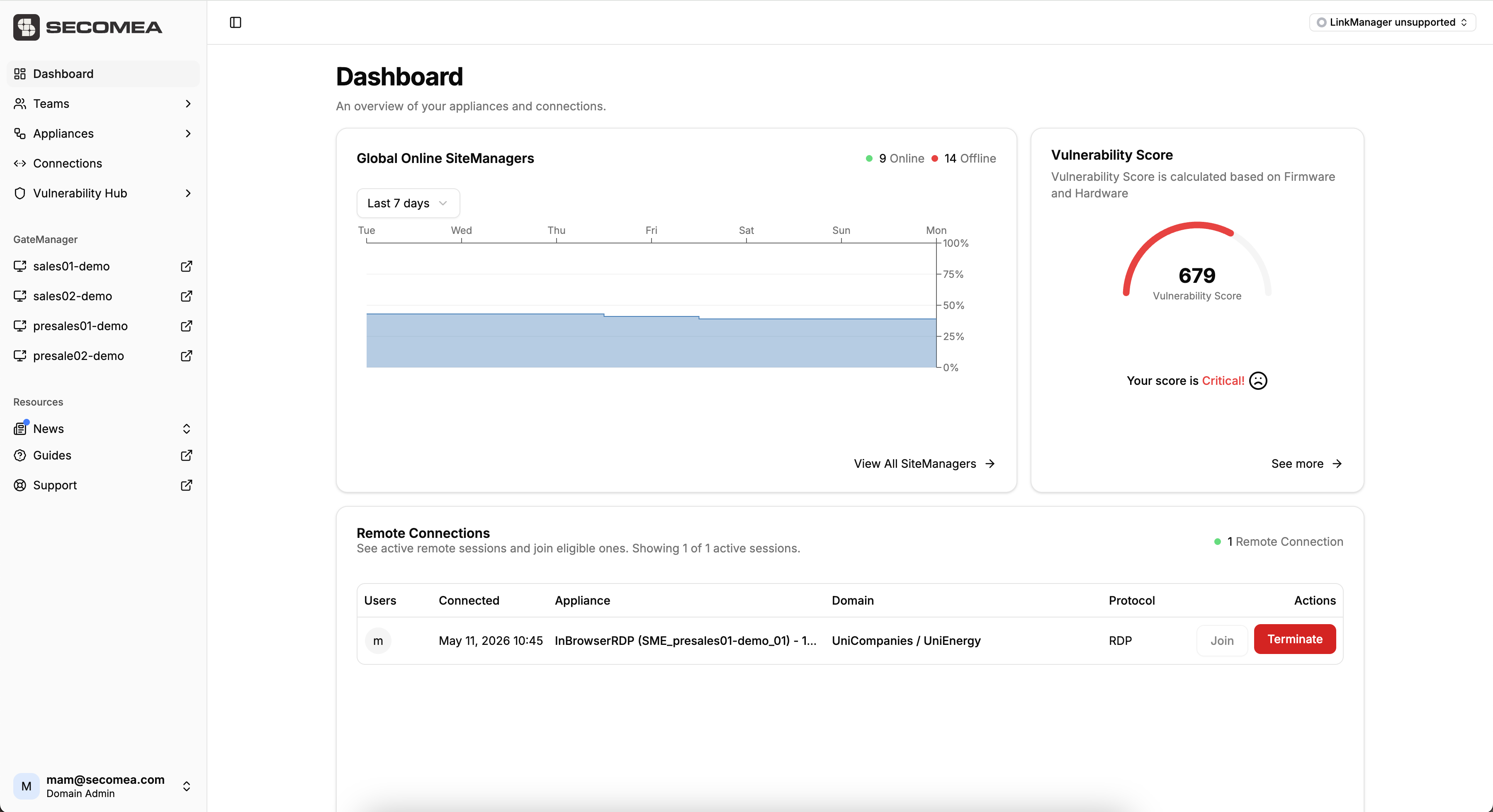
- Dashboard → Current Remote Connections
- Connections tab (left-hand menu)
- End-point page → Connections tab
To join:
- Locate the active session
- Click Join
- The session opens in a new window
3. Terminate a session (Domain Admin only)
- Click Terminate on the active session
- This immediately ends the session for all participants
Note:
Terminating a session does not change user access rights. Users with access to the endpoint can start a new session.
.png)
.png)
4. Transfer control of a session
To transfer control of a Joint Session:
- First, the current session must be terminated
- The user who should become the new Controller starts a new session
- Other participants can then rejoin the new session as Viewers.
Note:
Control cannot be transferred directly between users within an active session. A new session must be started by the new Controller.
Enabling Joint Session
Only** Domain Admins** can enable this feature.
To enable:
- Navigate to the endpoint
- Open the Connections tab
- Toggle Joint Session on
.png)
Security and audit
Joint Sessions are designed to maintain security, visibility, and control:
-
Viewers never receive device credentials
-
Viewers connect through the Controller’s encrypted session
-
Domain Admins can terminate sessions at any time
-
All sessions are logged in GateManager, including:
- Controller
- Viewers
- Device
- Timestamps
Joint Session does not bypass Request for Access (RfA):
If RfA is required, the Controller must already have approval
Viewers temporarily inherit that approval for the duration of the session only