In-Browser Connections in Prime
With in-browser connections, you can access industrial endpoints VNC, RDP, and SSH directly inside Secomea Prime, without installing anything on your computer. The session runs entirely in your browser, wrapped in the Prime interface, so there is no need for separate remote desktop clients or browser plugins.
This works across devices, including touch screens like tablets, and supports shared access so multiple users can view the same session simultaneously.
Before you start
Make sure that:
-
Your organization is using Secomea Prime.
-
The SiteManager connected to the target device is running and online in GateManager
-
The GateManager is running 11.9 or newer.
Starting a connection
-
Log in to Secomea Prime and navigate to the device or endpoint you want to access.
-
Click the Connect button next to the endpoint.
-
The session opens in a new the Prime interface. The page does not leave Prime the remote screen appears directly inside the browser tab.
-
If the endpoint requires credentials, you will be prompted for a username and/or password before the session starts. These settings are controlled by the SiteManager configuration.
The session interface
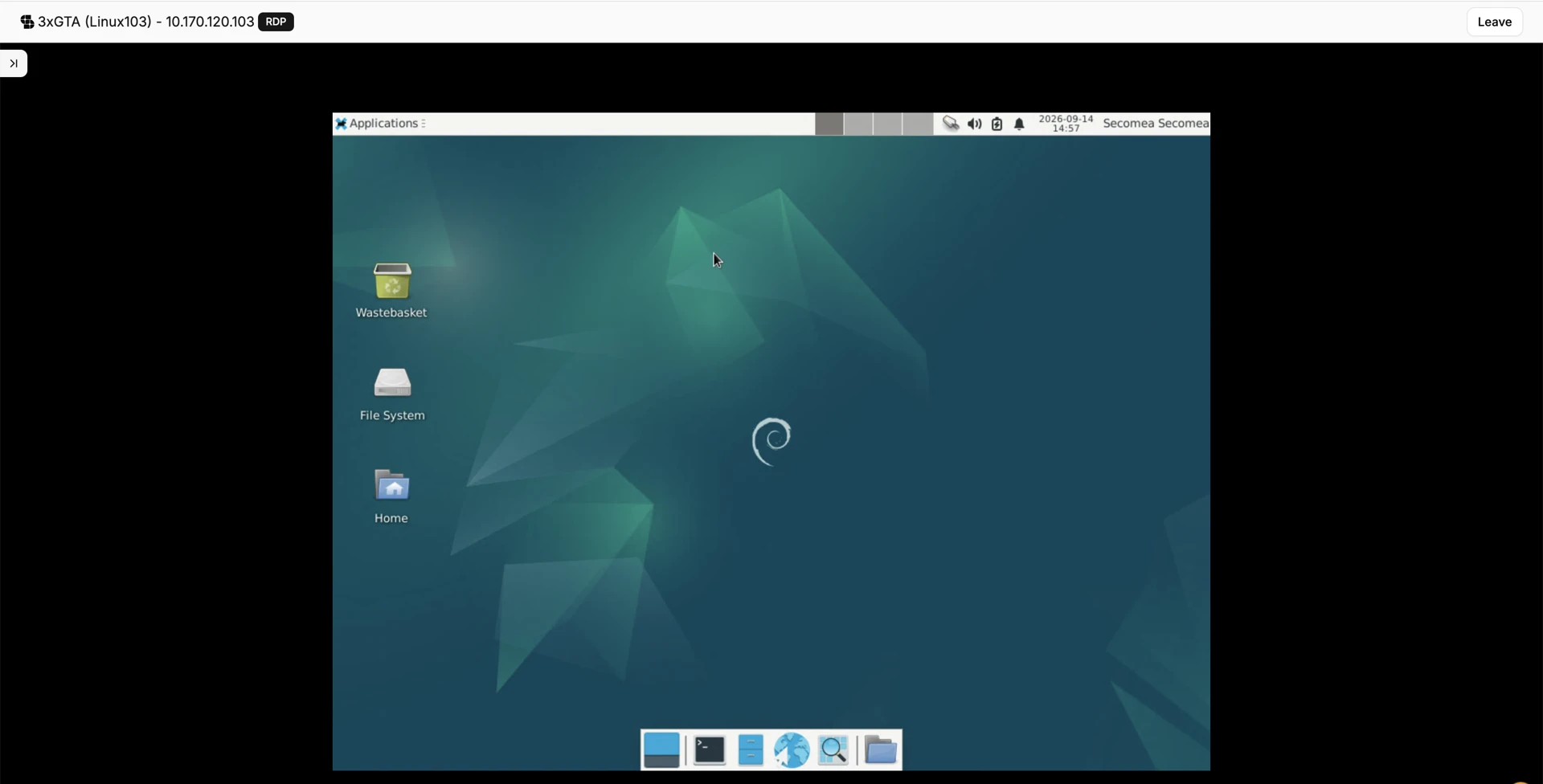
Once connected, a control bar appears at the top of the session window. It shows:
-
The endpoint name and the active protocol (RDP, VNC, or SSH), displayed as a badge in the top center
-
A Leave Session button in the top right corner
-
The control bar adapts to smaller screens and supports dark mode alongside the rest of the Prime interface.
Accessing the Toolbar
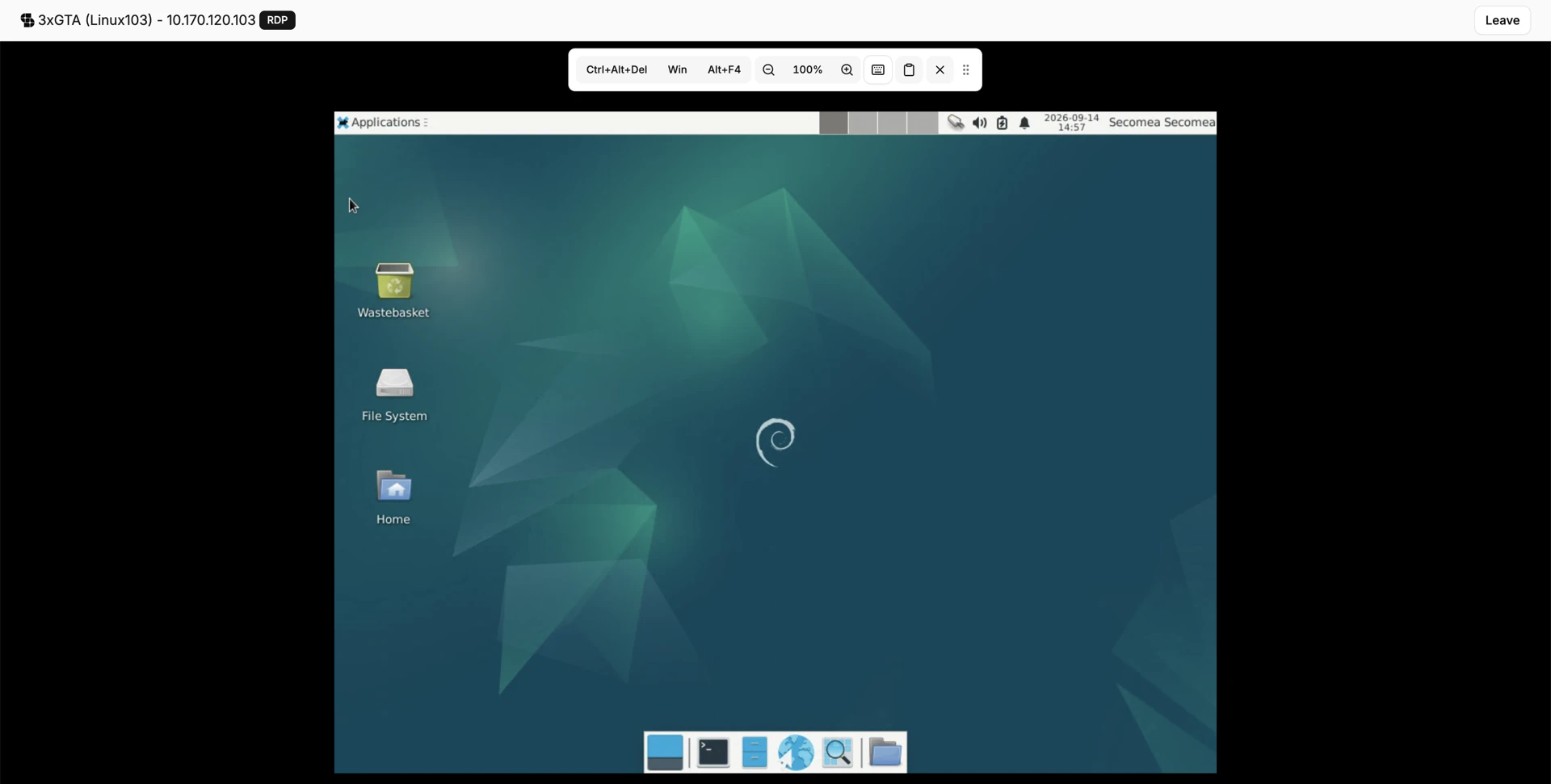
Click the arrow symbol in the top left corner to expand the tool bar.
Below you can see the tool bar that contains
-
Keyboard shortcuts
-
Zoom
-
On-screen key board
-
Clipboard
Interacting with the session
Mouse and keyboard
If you started the session, you are the Controller and have full mouse and keyboard input. Users who join an existing session join as Viewers and can observe but not send input. Roles are fixed for the duration of the session there is no option to transfer control mid-session.
Touch screen support
In-browser connections work on touch screen devices such as tablets.
-
Zoom: Pinch to zoom in and out on the remote screen or use the zoom function in the tool bar. Pan by dragging.
-
On-screen keyboard: Tap the keyboard icon to bring up an English on-screen keyboard. You can type and delete values directly from the keyboard overlay.
Copy and paste
You can copy text from your computer and paste it into the remote session. Only plain text is supported. Files, images, and other content cannot be transferred from your computer to the endpoint this way.
System shortcuts
Keyboard shortcuts that would normally be intercepted by your operating system can be sent to the remote endpoint through the session interface or use the tool bar with some pre-configured shortcuts.