This article shows you how to create a new account in your GateManager domain.
To create accounts in a GateManager domain you will need to have an Administrator account.
Log in to your domain with an administrator account and follow these steps to create a new account.
Log in to your domain with an administrator account and follow these steps to create a new account.
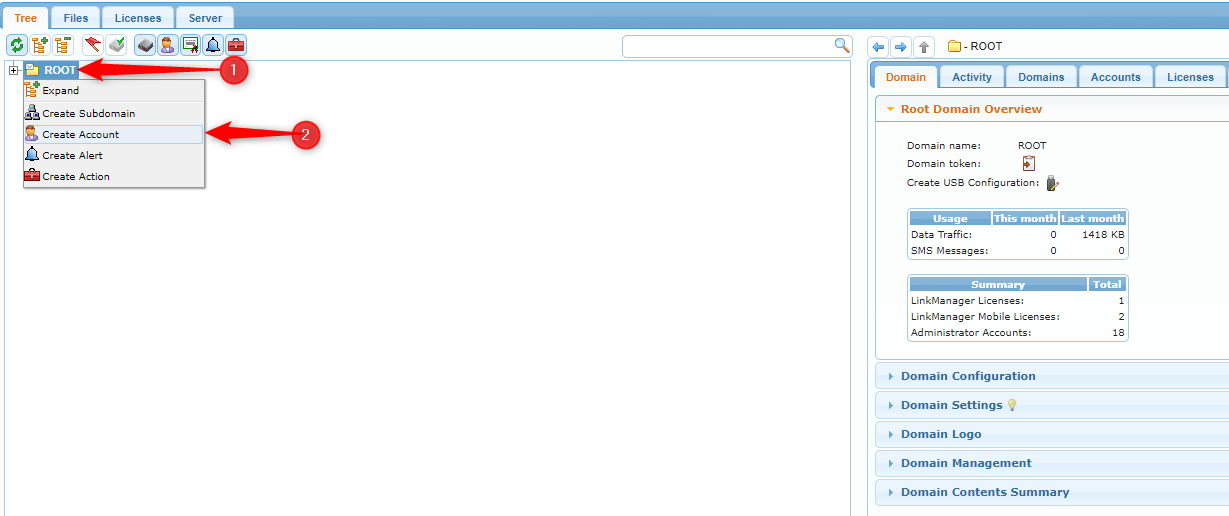
- Right-click on the domain you want to create the new account in
- Click "Create Account":
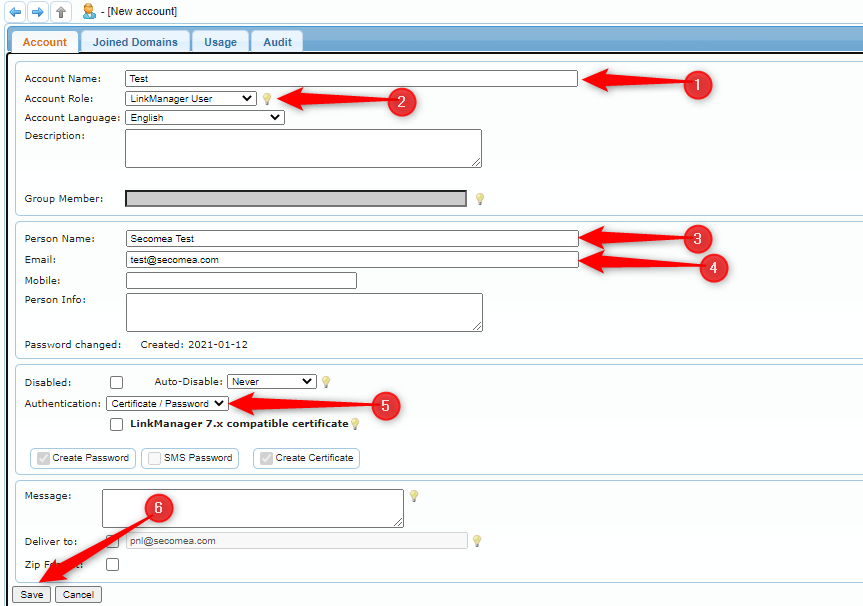
You have now started the creation of a new account and will automatically be forwarded to the “New account” page.
Here you need to fill out the following:
- Name of the account (Account name shall not contain any of : ; , < > ' " [ ] nor any non-printable character nor any whitespace.)
- Type of the account
- Name of the Person using the account
- Email to which the credentials will be sent.
- Select which type of authentication is used when logging in to this account (default is Certificate/Password)
- Click "Save" to save the account and send mail to the user with credentials:
The new account has now been created and the user should have received an E-mail with credentials and information on how to log in.