Prerequisite!
Request for Access is only available in the Professional and Premium Packages.
This article covers how to configure Request for Access.
This feature ensures that if someone needs access to end-points (agents) or SiteManagers, they must request access before they are able to connect. This applies to both the "Connect" (via LinkManager) and "Go To Appliance" (WWW, VNC, etc.) buttons.
The request for remote connection is sent by email to the selected account(s), which then has the option to grant or deny the remote access request.
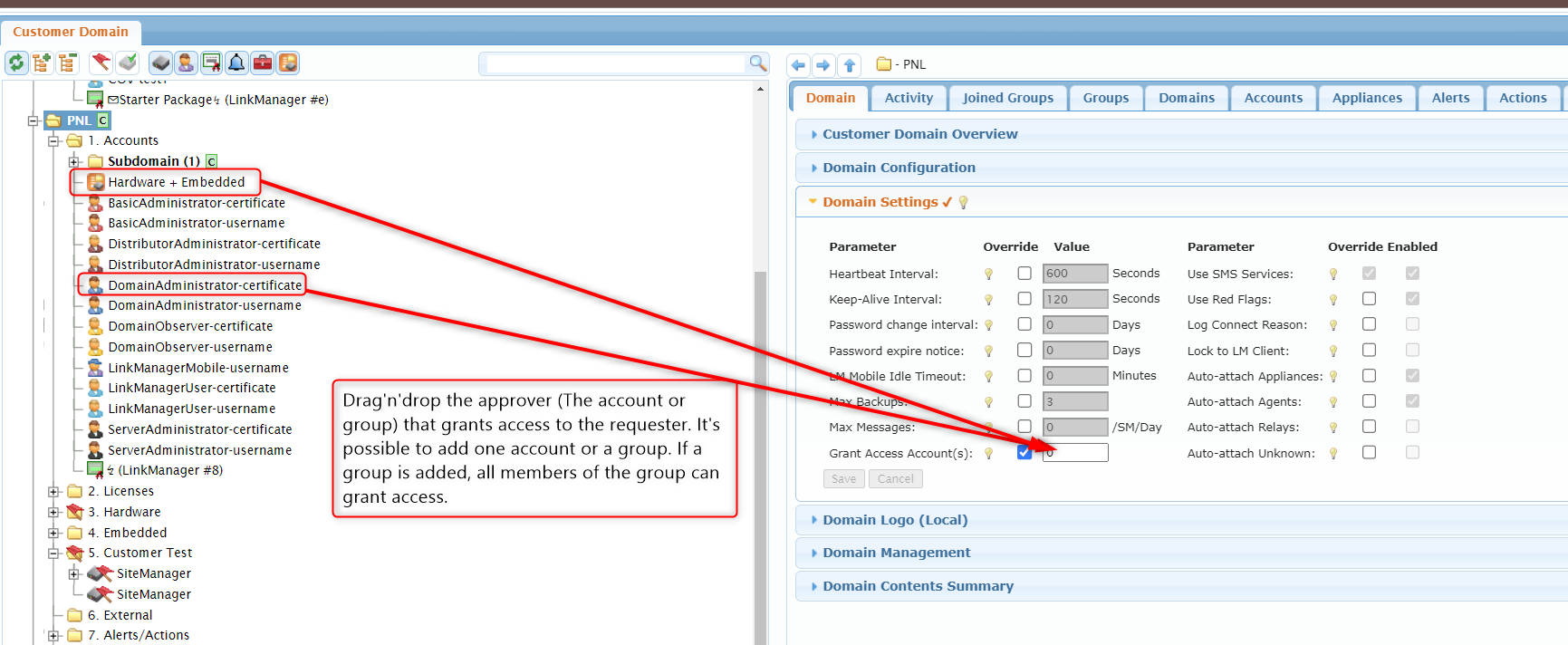
How to setup Request for Access:
- Go to the Subdomain you want to restrict access to.
- Drag the approver into the "Grant Access Account(s) field.
The approver can be either one account or a group. - If there is users/accounts who always should be allowed to access it's possible to enable it, go to the account in tree-view and check "Always Grant Remote Access:

For further information about the feature, go to the article ➡ Request for Access.