Set a user domain location with SCIM
For setting a specific domain location for a user, please follow the following steps:
- Ensure that the user exists in your Entra ID tenant as per the default process
- Click Cloud Shell in the Azure Portal (Wait for initialization)
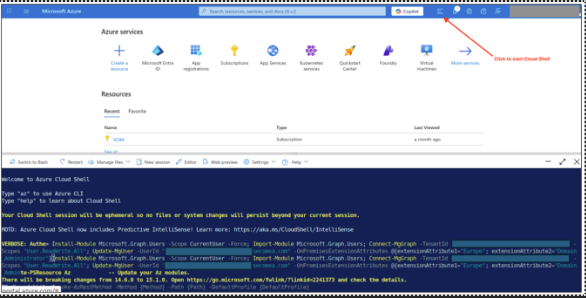
- Add and adapt the script below to the Azure Cloud Shell:
For a User
Connect-MgGraph -Scopes "User.ReadWrite.All"
# Single user
Update-MgUser -UserId "amundsen@acme.com" -OnPremisesExtensionAttributes @{
ExtensionAttribute2 = "Antarctica/RossIceShelf" 	# path
}
Where /Antarctica/RossIceShelf is the domain path where the resource is to be located in the Secomea system.
- Execute the script.
- Run Disconnect-MgGraph to disconnect from Microsoft Graph.
- Verify that the user has gotten the path assigned. This can be done via Provision on Demand in Entra, or in Secomea’s system once the user has been provisioned.
For On-Premises synced users, please follow the below approach
Run the following on your Active Directory server or any machine with RSAT AD Tools installed.
Set a Single User
# Import AD module
Import-Module ActiveDirectory
# Set extension attributes
Set-ADUser -Identity "username" -Replace @{
    extensionAttribute2 = "Antarctica/RossIceShelf"
}
# Verify
Get-ADUser -Identity "username" -Properties extensionAttribute2 |
    Select-Object Name, extensionAttribute2
Set Multiple Users at Once
Import-Module ActiveDirectory
# Define users and their attribute values
$Users = @(
    @{ Username = "user1"; Path= "Antarctica/RossIceShelf" },
    @{ Username = "user2"; Path = "Europe/Denmark" },
    @{ Username = "user3"; Path = "Europe/Germany"}
)
foreach ($user in $Users) {
    try {
        Set-ADUser -Identity $user.Username -Replace @{
            extensionAttribute2 = $user.Path
        }
        Write-Host "SUCCESS: $($user.Username) | Path=$($user.Path)" -ForegroundColor Green
    }
    catch {
        Write-Host "FAILED: $($user.Username) | Error: $($_.Exception.Message)" -ForegroundColor Red
    }
}
Force Azure AD Connect Sync
After setting attributes in AD, trigger a sync to push changes to Entra ID.
Run on the Azure AD Connect Server
# Delta sync (syncs only changes — recommended)
Start-ADSyncSyncCycle -PolicyType Delta
# Full sync (syncs everything — use only if delta doesn't work)
Start-ADSyncSyncCycle -PolicyType Initial
Check Sync Status
Get-ADSyncScheduler
Typical sync cycle is 30 minutes. A forced delta sync takes 1-2 minutes.
Verify Sync in Entra ID
After the sync completes, verify the attributes are visible in Entra ID.
Connect-MgGraph -Scopes "User.Read.All"
Invoke-MgGraphRequest -Method GET -Uri "https://graph.microsoft.com/v1.0/users/user@domain.com?`$select=displayName,onPremisesExtensionAttributes"
Expected output:
{
  "displayName": "John Doe",
  "onPremisesExtensionAttributes": {
    "extensionAttribute2": "Antarctica/RossIceShelf"
  }
}
Verify that the user has gotten the path assigned
This can be done via Provision on Demand in Entra, or in Secomea’s system once the user has been provisioned.