This article provides information about how to log in with a LinkManager account on the GateManager Web portal.
Before you begin with this guide make sure you have received the initial E-mail containing password and certificate.
- Open the E-mail you received from the GateManager.
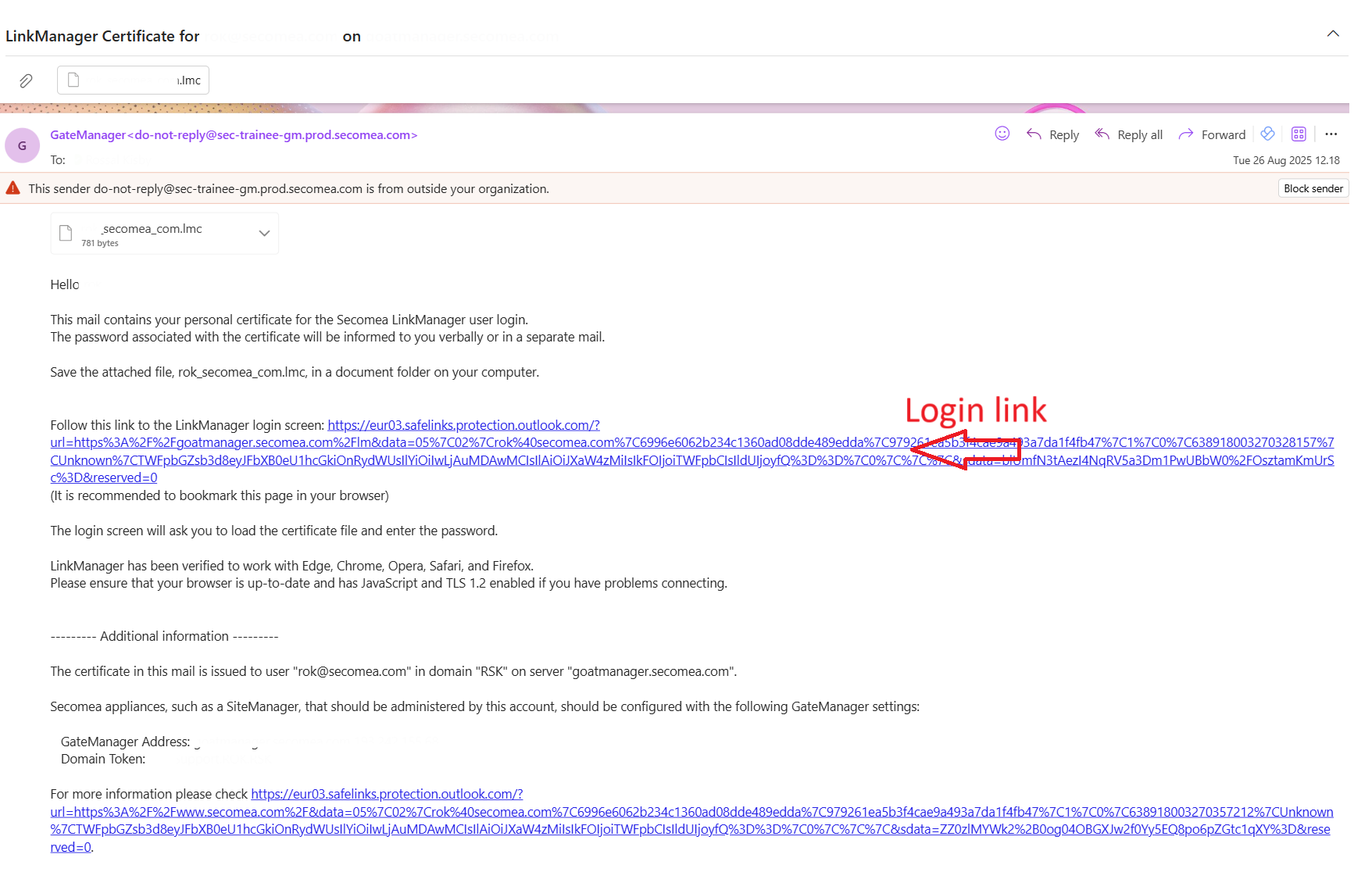
- Save the attached lmc file or LinkManager Certificate.
- Click on the login link (see image on no. 1) to directly access the LinkManager site.
- Upload the saved LinkManager Certificate, by clicking Choose, then select the lmc file.
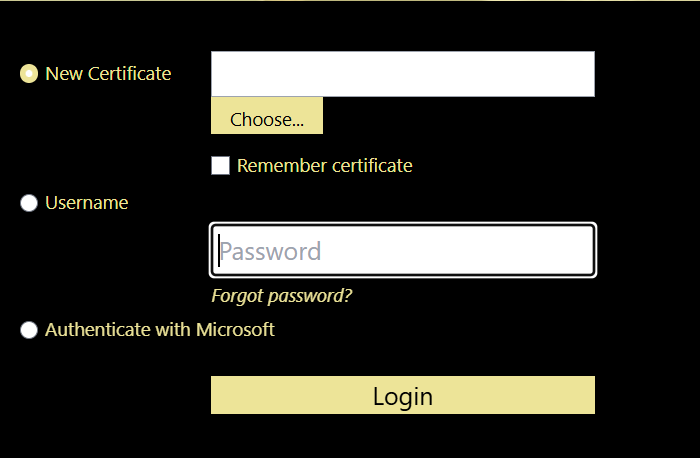
- Login using either of the following options Username and Password or Authenticate with Microsoft (this is depends on how your LinkManager is set up when it was created).
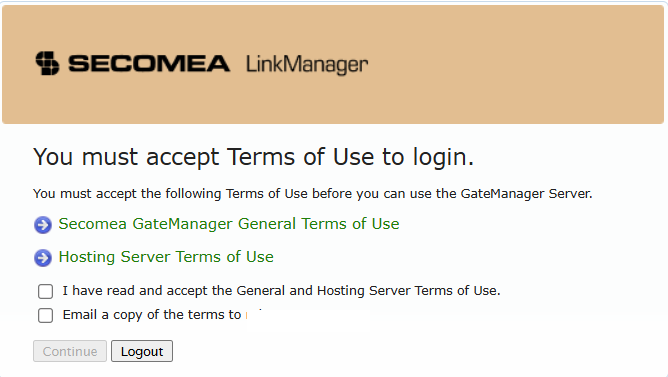
- You must accept Terms of Use to login.
- On the first login, changing the password is required before you can proceed:
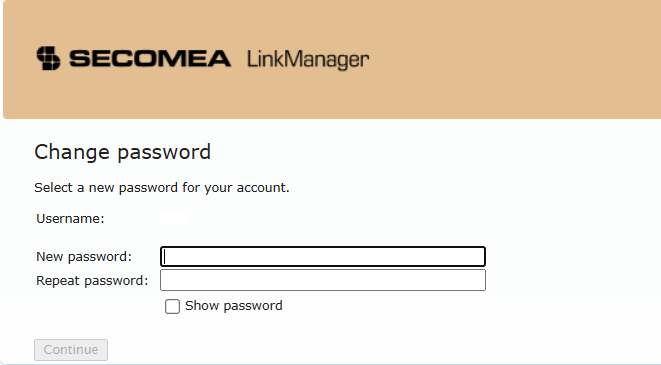
- You can read below the password requirements
- Password must be at least twelve (12) characters long.
- Password must contain characters from three of the following four categories:
- English upper case letters (A through Z)
- English lower case letters ( a through z )
- Numbers ( 0 through 9 )
- Special characters (for example, !, $, #, %)
- A user's previous 24 password cannot be reused.
- The password must not contain the user's account name or parts of the user's full name that exceed two consecutive characters.
Note:
A One-time password is only active for 48 hours on Secomea Hosted GateManager.
A One-time password is only active for 48 hours on Secomea Hosted GateManager.
If the password expires, a new one can be requested at login: