This article provides information on how to create a USB configuration tool from GateManager. This can be useful for setting up SiteManager, configuring interfaces, or changing the Admin password on your SiteManager.
- Prepare a FAT32-formatted USB flash stick.
- Log in to your GateManager, select the Domain where you want to get the USB configuration.
- Click on the Domain that you want your SiteManager to connect to. If no subdomains are available, choose the Root Domain.
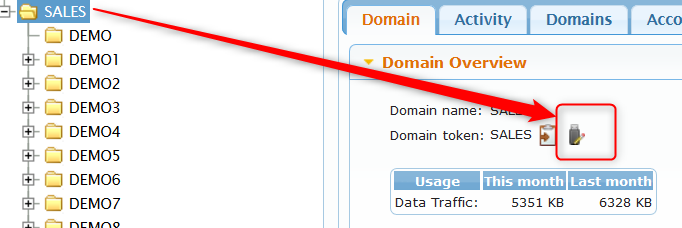
- Click on the USB configuration tool.
- Configure according to the configuration, best practice to add GateManager Hostname and GateManager's IP address. Domain Token where you want to connect your SiteManager and lastly the name of this Appliance. Keep the file name SITEMANAGER.CFG: then save it in your USB device.
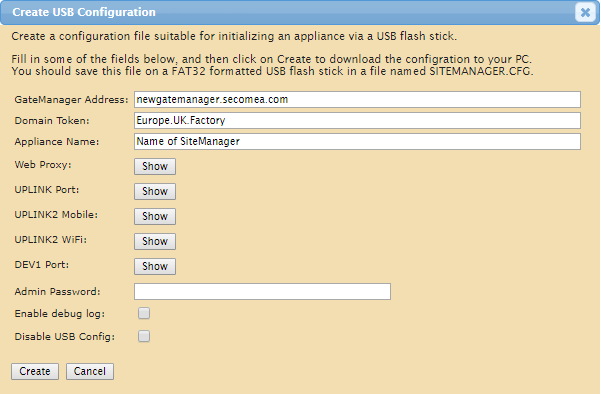 It is possible to put several settings here, like fixed UPLINK IP, WIFI ID, etc., or leave it blank, then the default will be automatically set. You can also edit the details here once the appliance is connected and online via the SiteManager GUI.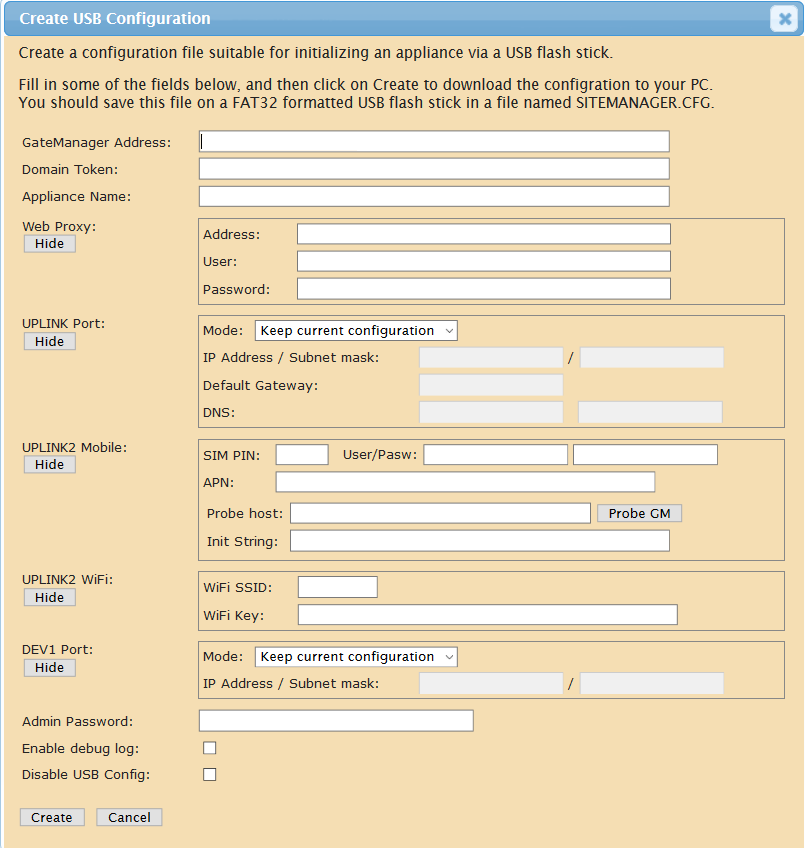
- Insert your USB storage device into your SiteManager and wait until all the lights on it have flashed on. After this, remove the USB device.
- Your SiteManager is now running with the configuration that you set up in the USB configuration tool.
- When it is successfully installed, the SiteManager will appear under your Domain.